
1
Upload or Access your Data
- click “+ Add Data”.
- Upload a file or choose a connected data source.
- Julius will automatically parse the structure and show a preview.
2
Ask for a Visualization in Natural Language
In the chat, simply type something like:
“Create a bar chart of sales by region.”Julius will:
“Plot a line graph showing daily active users over time.”
“Visualize the distribution of order amounts as a histogram.”
- Parse your request
- Identify relevant columns
- Generate the appropriate visualization (e.g., bar, line, scatter, histogram, boxplot)
3
Customize the Output
Once the visualization appears, you can refine it by asking follow-ups:
-
Change chart type:
“Can you turn this into a pie chart?”
-
Adjust axes or labels:
“Label the x-axis as ‘Date’ and y-axis as ‘Revenue’”
-
Add grouping or filtering:
“Group by product category” or “Only show data for 2024”
-
Change formatting:
“Add data labels” or “Use log scale on the y-axis”
4
View or Edit the Code (Optional)
Click “Show Code” to:
- See the Python or SQL code used to generate the visualization
- Edit the code if you want more control (e.g., set color palettes, change figure size)
- Rerun the chart with your edits
5
Save It to a Notebook (Optional)
Once you’re happy with the visualization:
- Click “Save to Notebook” to store it with your analysis
- Add context, reasoning, or notes alongside the chart
- Share the Notebook with your team for review or reuse
6
Export or Share
- Right-click or use built-in tools to download the chart as an image (PNG, SVG)
- Or copy it to clipboard to paste into a report, slide deck, or Notion doc
Using Chart Themes:
Julius supports custom chart themes, allowing you to personalize your visualizations to align with your company’s brand identity.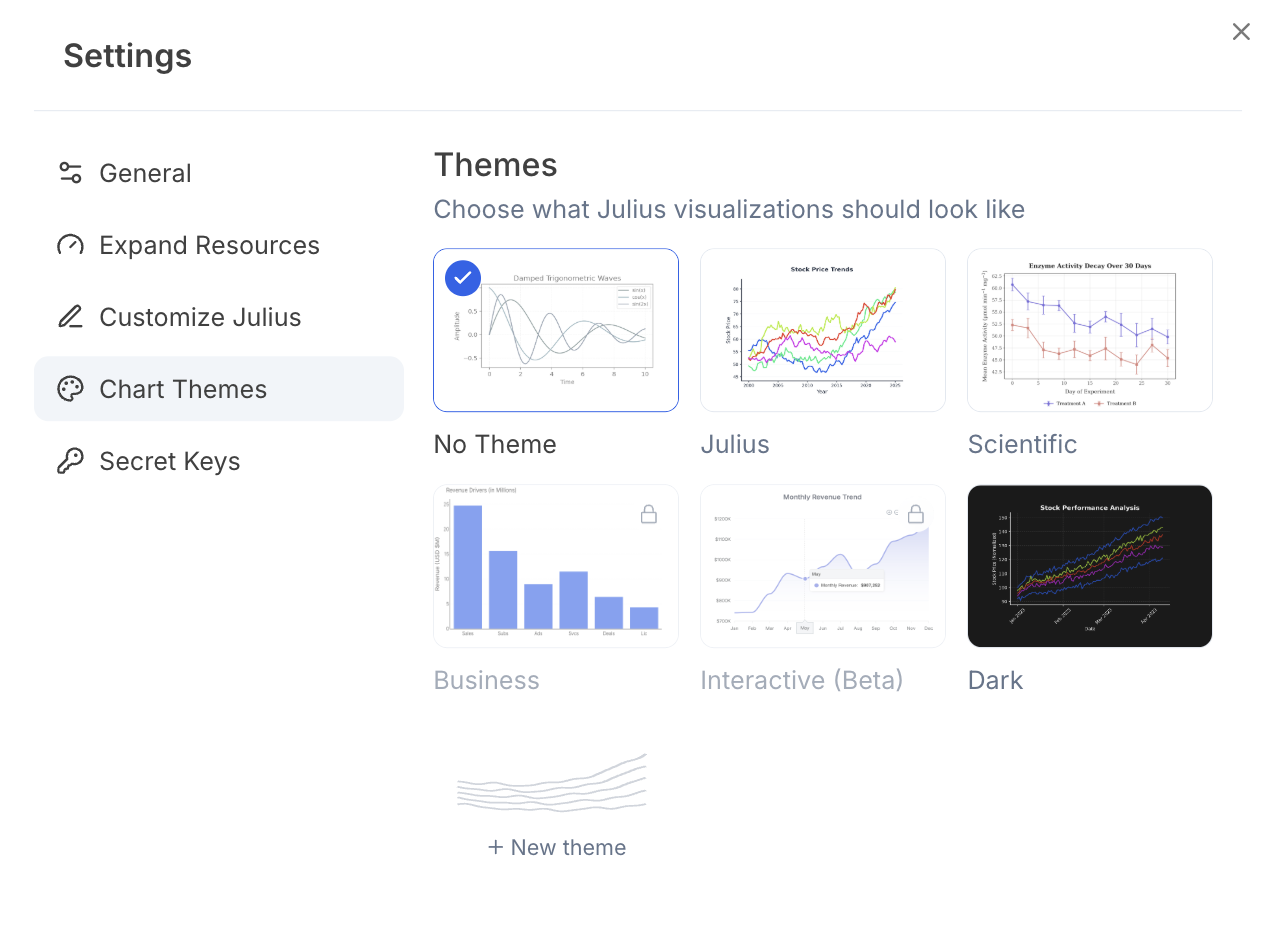
1
Click on Settings → Chart Themes
- Open Settings in Julius.
- Navigate to the Chart Themes section.
2
Choose from built-in presets like Scientific, Dark, or the Julius theme
- Choose from built-in presets like Scientific, Dark, or the Julius theme
- Or select
New themeto create your own custom theme
3
Create your Own Custom Theme
- Select primary and background colors using a color picker or input RGB, HSL, or HEX codes
- Auto-generate a palette or manually set gradient and chart colors
- Customize chart details: axes, fonts, borders, legends, and more